Sharing video evidence to Genetec Clearance
2026-01-16Last updated
Securely share video evidence from Web App to Genetec Clearance™.
Before you begin
What you should know
- • The user sharing the video file is granted Manage permissions for the file.
- • The recipient is granted View and download permissions by default.
-
Note:Recipients have 14 days to access and download the shared files before they’re deleted.
Procedure
-
In Web App, click Tiles from the App switcher (
 ).
).
-
Click Browse (
 ) to display your entities.
-
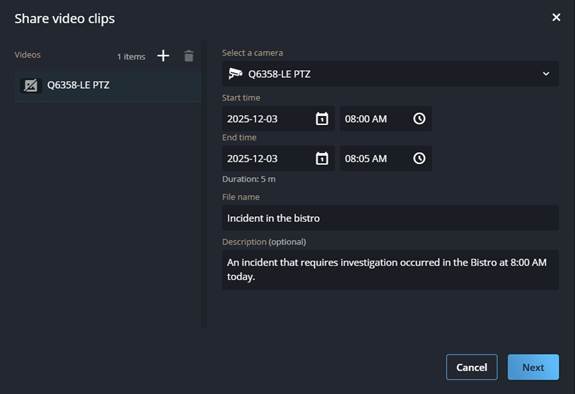
(Optional) To share video clips from multiple cameras, click
 , then Select a
camera and complete the fields.
, then Select a
camera and complete the fields.