
Controlling PTZ cameras in Genetec Web App
2026-01-24Last updated
You can control PTZ cameras by clicking on a point to center the view or by drawing a box to move and zoom. This ensures that the selected area fills the video feed within the camera's movement and zoom limits.
Before you begin
- Set the tile to full screen mode to give you more control space for PTZ operations.
- Combine presets with point-and-click in Config Tool for quick adjustments.
Procedure
-
Select a PTZ-enabled camera and click PTZ mode (
 ) in the video player
toolbar.
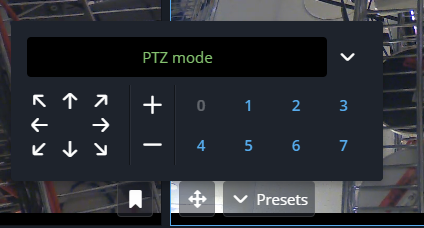
The manual controls are accessible from the PTZ mode's interface.
) in the video player
toolbar.
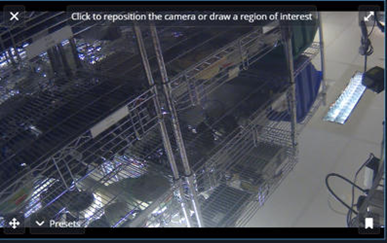
The manual controls are accessible from the PTZ mode's interface.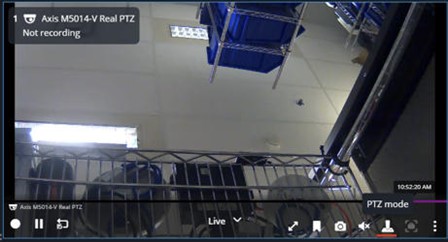
-
Here are the options for a PTZ camera:
- Scroll to Zoom
- Use the mouse wheel to zoom in or out.
- Point-and-Click
- Click anywhere on the video to recenter the camera view.
- Draw-to-Zoom
- Click on the video and drag your mouse to draw a box. The camera zooms in and the selected area fills the view.
- Digital Zoom Mode
-
- To activate digital zoom mode, hold Shift + scroll in.
- To Exit from digital zoom mode scroll out until digital zoom disappears.
- Create bookmarks
- Click to Bookmark (
 ) create bookmarks while in PTZ mode.
- Presets
- Click Presets to access the list of PTZ presets.
Limitation:- Digital zoom, point-and-click, or draw-to-zoom cannot be used together.
- If PTZ is locked, a warning appears and controls are disabled.
- This feature is supported for on-premise installations using Security Center 5.13.3 and later.