
Calling VoIP devices on a map in the Genetec Web App
2026-01-24Last updated
In the Maps task, you can view the location and make calls to Voice over Internet Protocol (VoIP) units.
Before you begin
Procedure
-
Click the Select map (
 ) icon, then choose the map you want from the
list.
Markers representing VoIP devices are automatically displayed on the selected map.
) icon, then choose the map you want from the
list.
Markers representing VoIP devices are automatically displayed on the selected map.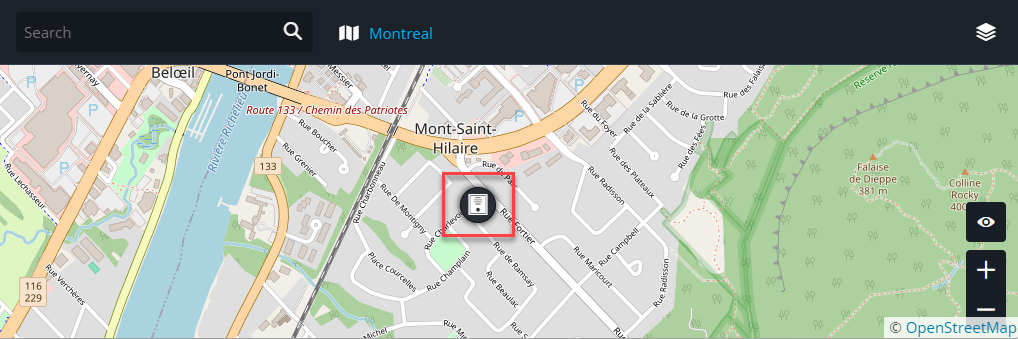
-
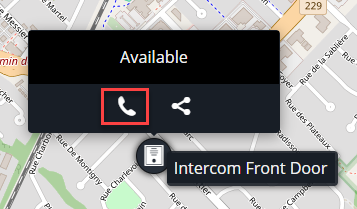
Hover over the VoIP device marker and click the call button in the pop-up.
 After the call connects, the side panel opens.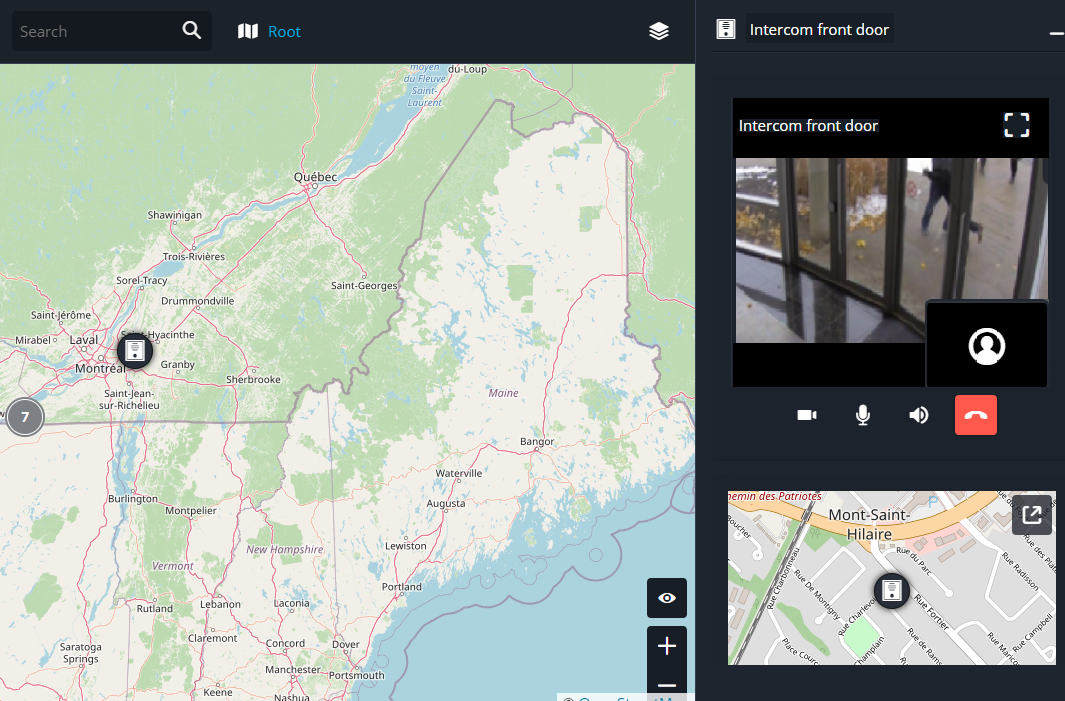
-
To end the call, click the End call (
 ) icon.